How to Create Emails in DirectAdmin

Creating an Email in DirectAdmin

1. Log in to DirectAdmin.

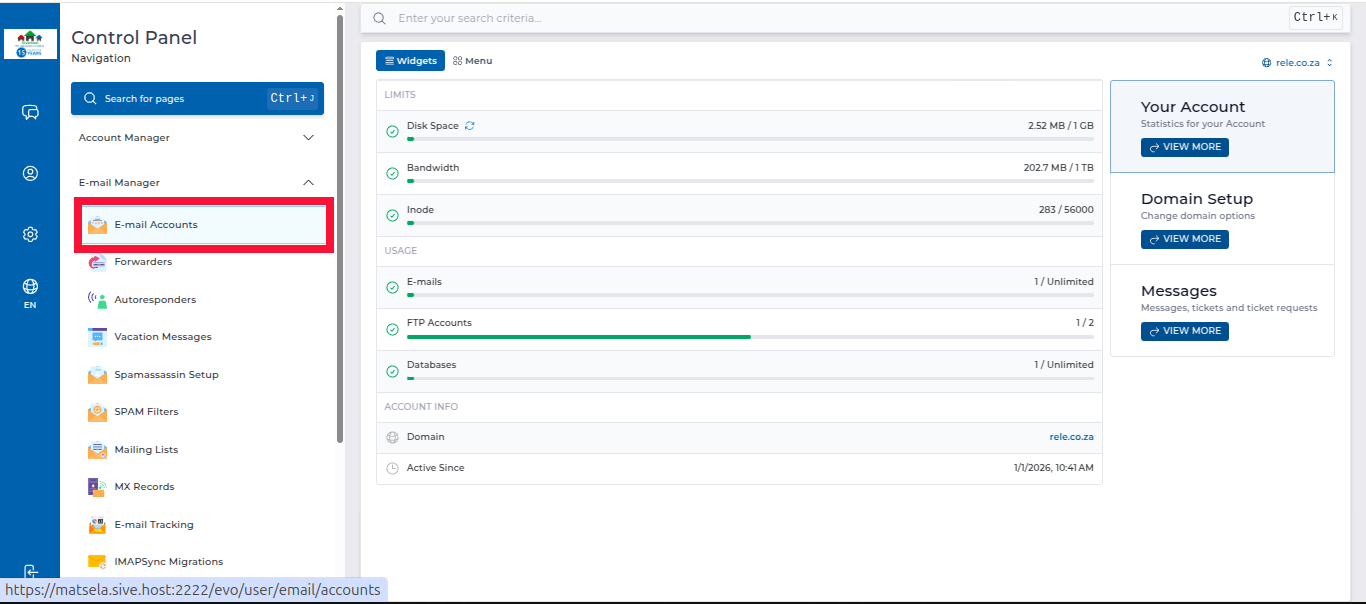
2. In the left panel menu, click the dropdown arrow next to "Email Manager", then select "Email Accounts".
https://sive.host/titfombe/repository/26direct1.png

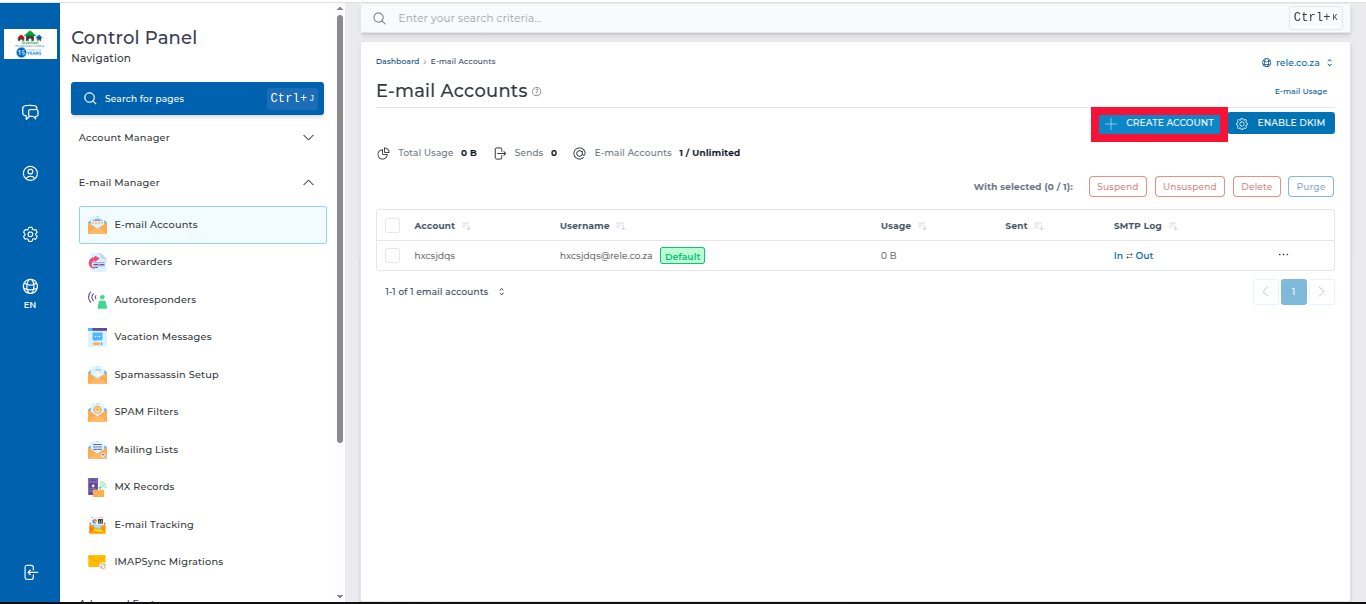
3. Click "Create Account" on the right-hand side.
https://sive.host/titfombe/repository/26direct2.png

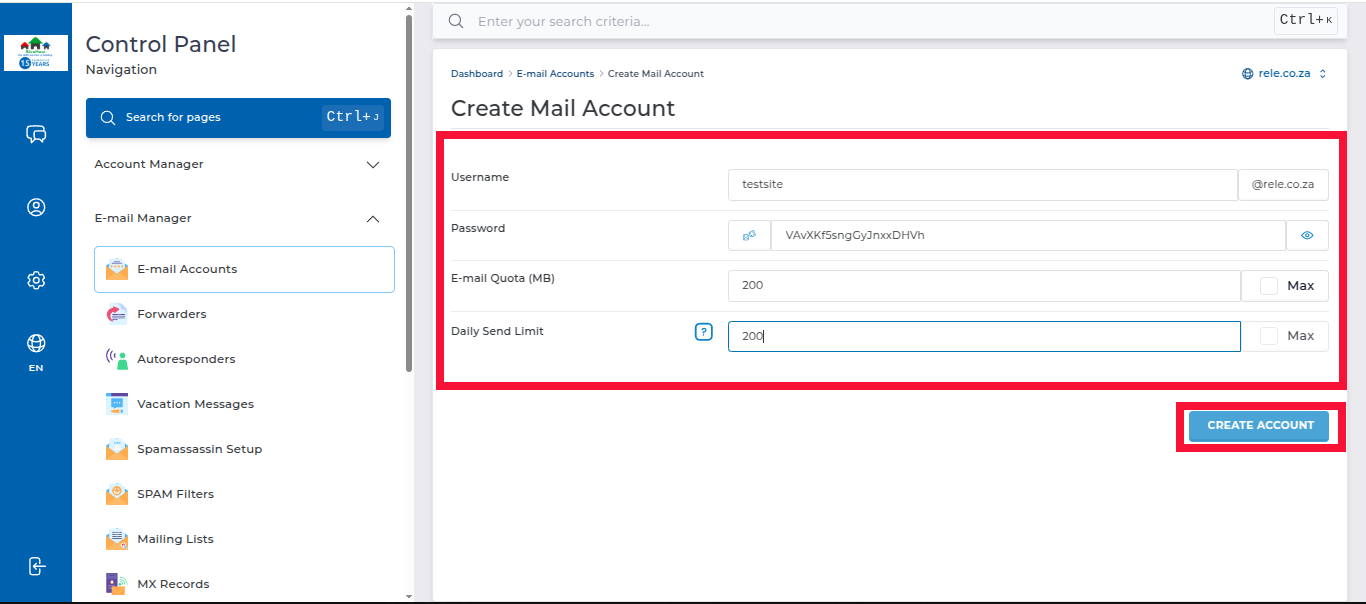
4. Fill in the following details:

  • Username
  • Password
  • Email Quota (MB) (refers to the amount of storage space allocated to an email account in megabytes (MB). It determines how much space the account can use for storing emails, attachments, and other data.)
  • Daily Send Limit

Click "Create Account" to create the email account.
https://sive.host/titfombe/repository/26direct3.png

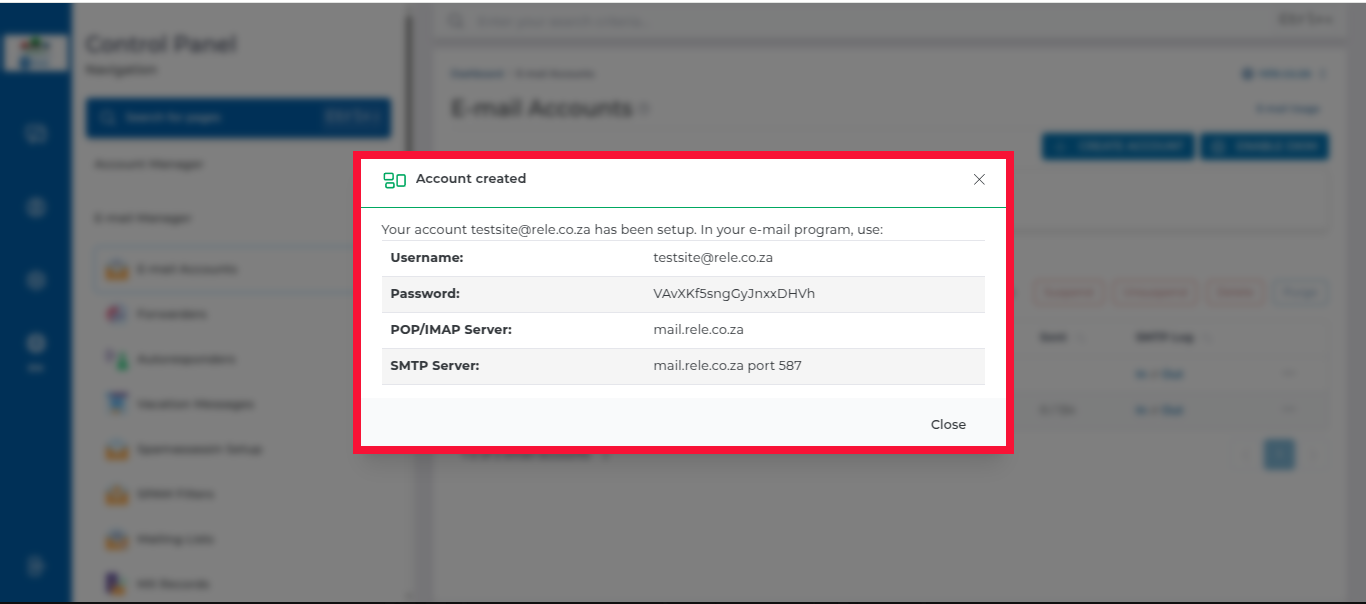
5. Once created, you will see a pop-up with your login credentials. Click close
https://sive.host/titfombe/repository/26direct4.png
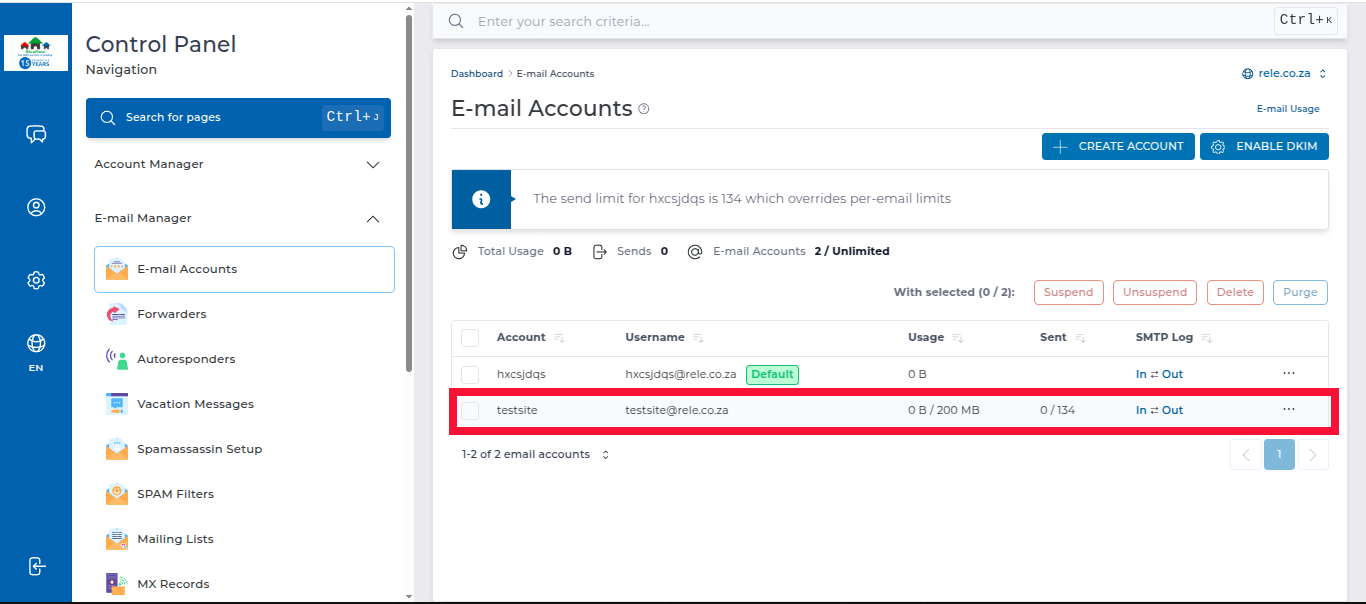
 Your email account will appear under Email Accounts to show that it been successfully created
https://sive.host/titfombe/repository/26direct5.png

  • 0 Los Usuarios han Encontrado Esto Útil
¿Fue útil la respuesta?

Artículos Relacionados

How to Log in to DirectAdmin

After you place an order and make a successful payment, you will receive a welcome email...

How to Log Into DirectAdmin From the Client Area

How do I log into DirectAdmin We begin to login at the Portal Home. This is the Login Page for...

How to Change Your Email Password on DirectAdmin

Changing Your Email Account Password   1. Log in to DirectAdmin. 2. In the left panel menu,...