How to Configure SSH Passwoerd Login on Ubuntu 24.04 Server

Secure Shell (SSH) allows you to remotely access and manage your Ubuntu server from another computer. By default, SSH using username and password may not be enabled on a fresh Ubuntu 24.04 installation. This guide will walk you through the steps to configure and enable SSH access using password.

Step 1
Log in to your server using your username and password via noVNC Console (Find out how here)

Step 2

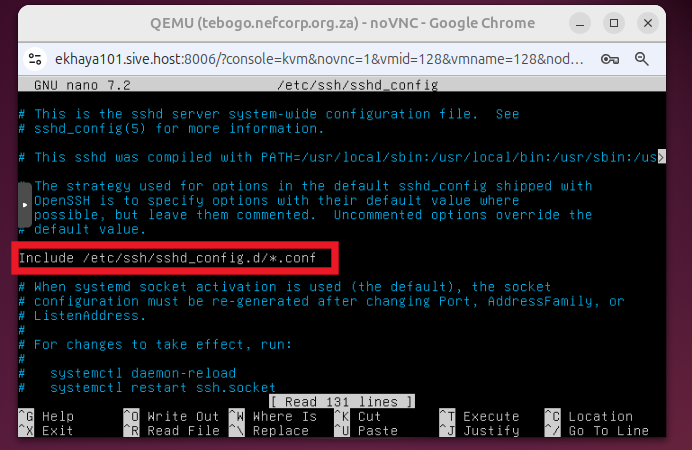
Run:  sudo nano /etc/ssh/sshd_config

Output
https://sive.host/titfombe/repository/sshconfig1.png

Press Ctrl + X to go back to the dialog

Step 3

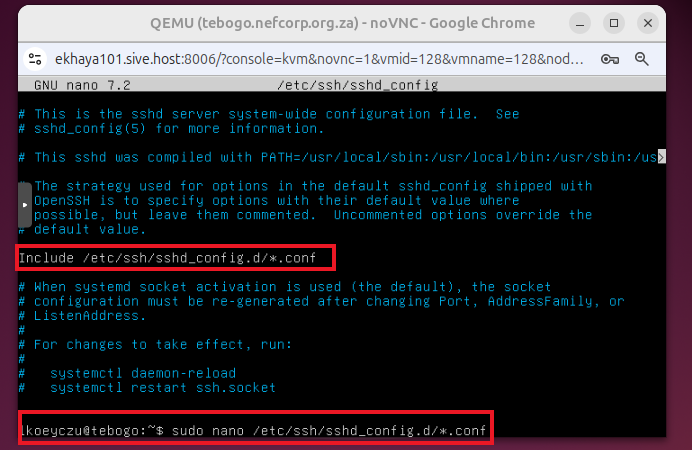
Include the command as prompted

Run:  sudo nano /etc/ssh/sshd_config.d/*.conf
https://sive.host/titfombe/repository/sshconfig3.png

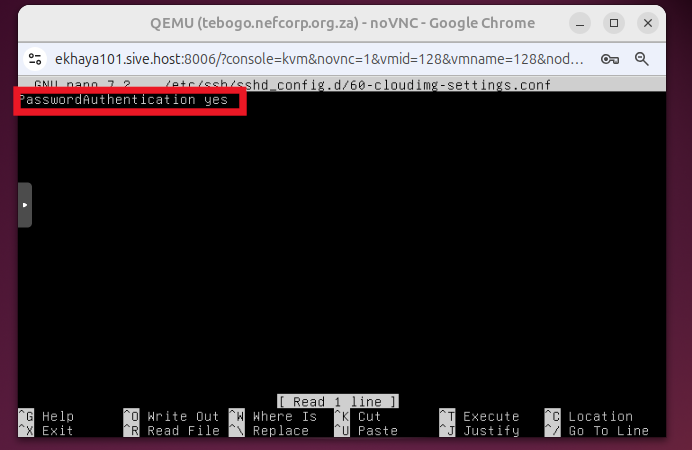
Change PasswordAuthentication no to PasswordAuthentication yes

Press Ctrl+O, then enter to save changes/WriteOut and Ctrl+X to go back to the dialog

Output

If the output screen is blank, manually type in PasswordAuthentication yes
https://sive.host/titfombe/repository/sshconfig2.png


Step 4

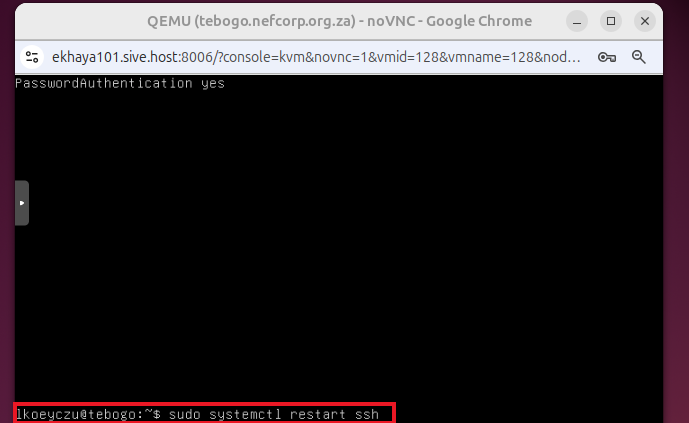
Restart SSH and log in via terminal.

To restart SSH, run: sudo systemctl restart ssh 
https://sive.host/titfombe/repository/sshconfig4.png

Log in via terminal using command: ssh username@ip_address

  • 0 Utenti hanno trovato utile questa risposta
Hai trovato utile questa risposta?

Articoli Correlati

12 Useful “df” Commands to Check Disk Space in Linux

Useful df Command Examples This article explain a way to get the full information of Linux disk...

How to Disable SELinux

How to Disable SELinux You’ve setup a new system, or installed something new on your Linux...

How to set a Static IP in Ubuntu Linux

How to set a Static IP in Ubuntu LinuxOpen the terminal command line application or ssh into the...

Linux Check Disk Space Command To View System Disk Usage

Linux Check Disk Space Command To View System Disk Usage Linux command to check disk space...